Creating an MCP Server For Big Beautiful Screens
I’ve built a simple MCP srver before for integrating Claude and Codex with Discord. But that one was very simple: two tools, no resource, or templates. Now I’m working on another one. An MCP server for Big Beautiful Screens (BBS).
This one is going to be a lot more in depth because I want to expose the full suite of BBS functionality to all agents. I want to make sure the agents have enough information to build high-quality and beautiful screens accurately. And I want users to understand the full suite of functionality available to them when speaking with an agent about BBS.
Here are the tools that have been implemented so far:
- list_screens
- create_screen
- get_screen
- update_screen
- delete_screen
- send_message
- create_page
- list_layouts
One thing that I needed to improve was the schema handling. I didn’t want to have to maintain and sync Pydantic schemas AND the MCP tool templates. I solved this by creating a small schema utility that auto-generates MCP-compatible JSON schemas directly from the Pydantic models. The MCP argument models are thin wrappers around the core app models, and the tool definitions just call the utility instead of hand-writing JSON schemas. Schemas are defined once and automatically converted — no manual sync needed.
First use
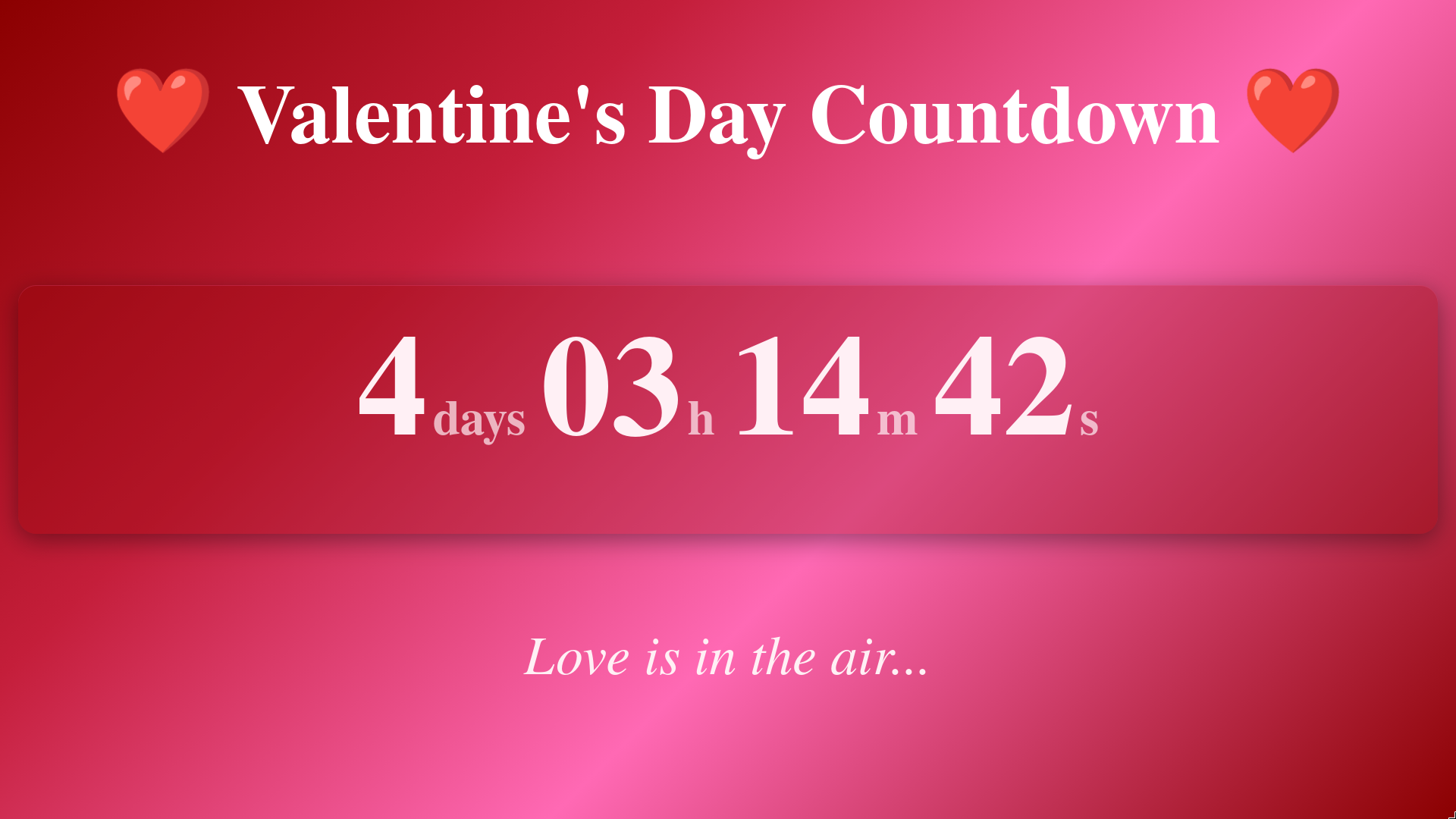
I was pleasantly surprised by my first test run of the MCP server. I asked it to create a valentines day countdown and got the below. It had more style and opinion than most of the other screens I had created, which I can appreciate.
Self Hosted and SaaS
The MCP server works whether you are using the self-hosted version or SaaS. In the SaaS application you have to generate an account level API key so that the MCP server can create new screens, etc.
Setting it up is easy:
Self Hosted
Add the following to your MCP client config (e.g. claude_desktop_config.json):
{
  "mcpServers": {
    "big-beautiful-screens": {
      "command": "python",
      "args": ["-m", "app.mcp.cli"],
      "cwd": "/path/to/Big-Beautiful-Screens",
      "env": {
        "APP_MODE": "self-hosted"
      }
    }
  }
}
That’s it. No authentication is needed at the account level — screen-level API keys are generated automatically when you create a screen.
SaaS
First, generate an account API key from Settings in the BBS web app. Then add the following to your MCP client config:
{
  "mcpServers": {
    "big-beautiful-screens": {
      "url": "https://bigbeautifulscreens.com/mcp/sse",
      "transport": "sse",
      "headers": {
        "X-API-Key": "ak_your-account-api-key"
      }
    }
  }
}
The account key (ak_ prefix) authenticates all requests so the server knows which screens belong to you.
First Use
Once you have the MCP server configured creating a new screen is as simple as asking for it:
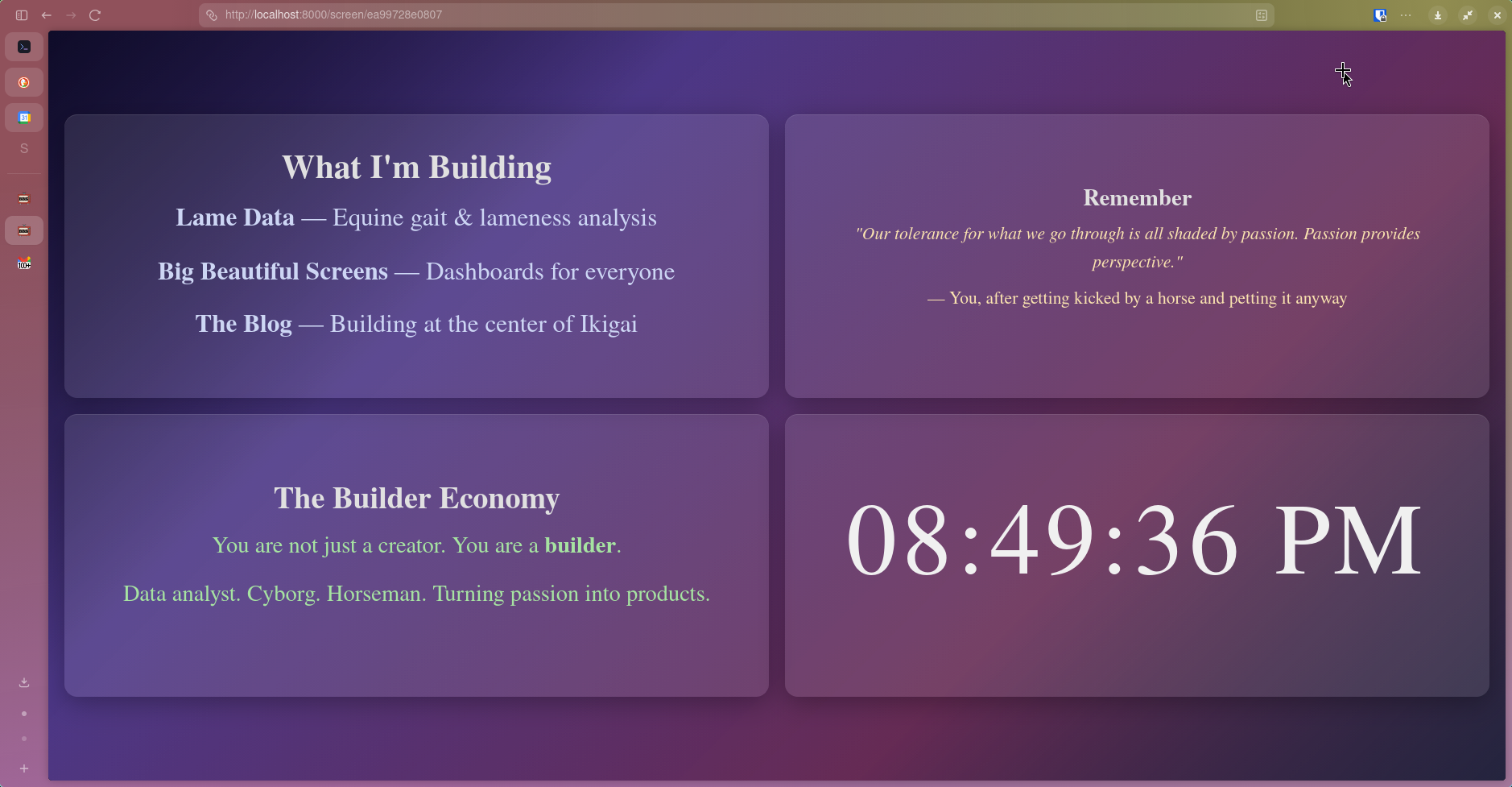
Create a screen on Big Beautiful Screens, use what you know about me to create a screen that will make me smile!
Here’s what mine spit out. I’m curious to see what you get!
Go give it a try!